
Paste screenshots into Claude Codeวางสกรีนช็อตลง Claude Code
On Windows, Ctrl+V finally attaches your image.บน Windows กด Ctrl+V แล้วรูปแนบได้จริง ๆ
Windows 10 & 11 · PowerShell · MIT
irm https://raw.githubusercontent.com/botnick/clipwarp/main/install.ps1 | iex
Then run clipwarp watch once — and you're done.แล้วรัน clipwarp watch ครั้งเดียว — จบ
Copy, warp, pasteก๊อป วาร์ป วาง
clipwarp watches your clipboard and hands Claude Code exactly what it accepts.clipwarp คอยดู clipboard แล้วส่งสิ่งที่ Claude Code รับได้ให้พอดี

Copy any imageก๊อปรูปอะไรก็ได้
Win+Shift+S, Lightshot, ShareX, or Copy image in a browser.Win+Shift+S, Lightshot, ShareX หรือ Copy image ในเบราว์เซอร์

clipwarp warps itclipwarp วาร์ปให้
It saves the image and puts its path on the clipboard — automatically.เซฟไฟล์รูปแล้ววาง path ลง clipboard ให้อัตโนมัติ

Ctrl+V in Claude CodeCtrl+V ใน Claude Code
Press paste and the screenshot attaches. That's it.กดวางแล้วรูปแนบเลย แค่นั้น
See it in actionดูตอนใช้งานจริง
A real screenshot, pasted straight into Claude Code.สกรีนช็อตจริง วางลง Claude Code ตรง ๆ
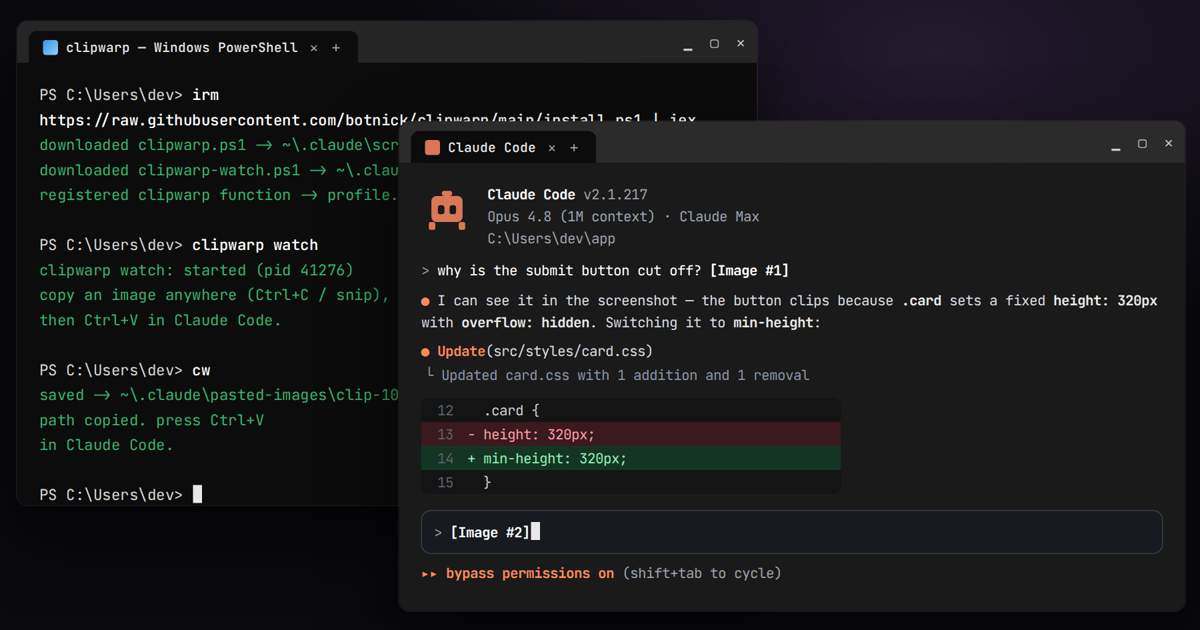

Not using Claude Code? Turn the watcher off.ไม่ได้ใช้ Claude Code? ปิด watcher ก่อน
While the watcher runs, every copied image also carries its file path as text:ตอน watcher ทำงาน ทุกครั้งที่ก๊อปรูปจะมี path ติดไปด้วย:
C:\Users\…\clip-….pngช่องที่รับแค่ข้อความจะได้ path มาแทน เช่น C:\Users\…\clip-….pngDone? Run clipwarp stop, and clipwarp unautostart so it won't start at login.เลิกใช้แล้ว? รัน clipwarp stop และ clipwarp unautostart เพื่อไม่ให้เปิดเองตอนล็อกอิน
Questionsคำถามที่พบบ่อย
Why doesn't Ctrl+V image paste work in Claude Code on Windows?ทำไม Ctrl+V วางรูปใน Claude Code บน Windows ไม่ได้
Alt+V is WSL-only. Pasting a file path as text is the reliable route — clipwarp automates it.ตัว UI เทอร์มินัลของ Claude Code บน Windows แท้ อ่าน bitmap จาก clipboard ไม่ได้ และ Alt+V ใช้ได้แค่บน WSL วิธีที่เวิร์กคือวาง path เป็นข้อความ — clipwarp ทำให้อัตโนมัติHow do I paste a screenshot into Claude Code?วางสกรีนช็อตลง Claude Code ยังไง
clipwarp watch), take a screenshot with Win+Shift+S, then press Ctrl+V in Claude Code. Without the watcher, run cw after the screenshot, then Ctrl+V.เปิด watcher ไว้ (clipwarp watch) แล้วจับภาพด้วย Win+Shift+S จากนั้นกด Ctrl+V ใน Claude Code ถ้าไม่เปิด watcher ให้รัน cw หลังจับภาพ แล้ว Ctrl+VDoes it work with WSL?ใช้กับ WSL ได้ไหม
Alt+V usually works. clipwarp targets native Windows — Windows Terminal, PowerShell, cmd, VS Code terminal.บน WSL ปกติ Alt+V ของ Claude Code ใช้ได้อยู่แล้ว clipwarp ทำมาเพื่อ Windows แท้Is my screenshot uploaded anywhere?รูปถูกอัปโหลดไปไหนไหม
Will it clutter my disk?รูปจะรกเครื่องไหม
%USERPROFILE%\.claude\pasted-images, and anything older than 7 days is cleaned up automatically — the folder never grows unbounded.ไม่ รูปที่เซฟไปเก็บที่ %USERPROFILE%\.claude\pasted-images และไฟล์ที่เก่ากว่า 7 วันจะถูกลบอัตโนมัติ — โฟลเดอร์ไม่บวมไม่รกเครื่อง
Ready in ten secondsพร้อมใช้ใน 10 วินาที
One command, and Ctrl+V just works in Claude Code.คำสั่งเดียว แล้ว Ctrl+V ก็ใช้ได้ใน Claude Code
Get clipwarpเริ่มใช้ clipwarp